LinkedIn Profile
.avif)
.webp)
Congratulations on your promotion. Advancing in your career is a major milestone, and updating your LinkedIn profile helps you reflect that growth. However, you want to showcase your new title without erasing the valuable years you've already spent at your company.
The most important rule is simple: always add your new role as a separate position under the same employer rather than editing your existing title. Doing this allows LinkedIn to stack your roles together, highlighting your internal career growth.
In this blog, we'll walk you through the steps on desktop and mobile, tell you whether to notify your network, and show you how to update your headline and skills to reflect your new responsibilities.
Add the new role, do not edit the old one
When you receive a promotion, you can click the edit icon next to your current job title and type in the new one. However, editing your existing entry overwrites your job history, making it look as though you held the new title for your entire duration at the company. Overwriting your old title erases your track record of growth, removing clear proof that you earned a step up through strong performance.
Instead, you should add your new role as a separate entry under the exact same company name. When you enter a new position with the same employer, LinkedIn automatically groups your roles under a single company heading (LinkedIn help: Grouping positions). This stacked layout displays your total company tenure at the top while listing each individual title underneath in chronological order, showing recruiters and connections your clear career progression at a single glance.
How to add a promotion on LinkedIn (desktop)
Adding a promotion on a desktop browser takes less than two minutes if you follow these steps in order:
- Click your profile picture icon labeled "Me" in the top navigation bar, then select "View Profile."
- Scroll down to your "Experience" section and click the (+) icon in the top-right corner, then select "Add position" (Add or edit positions).
- Type your new job title into the "Title" field.
- Begin typing your company name in the "Company name" field and select your employer from the official LinkedIn dropdown menu. This step is essential: selecting the exact same company from the list is what triggers LinkedIn to group your roles together.
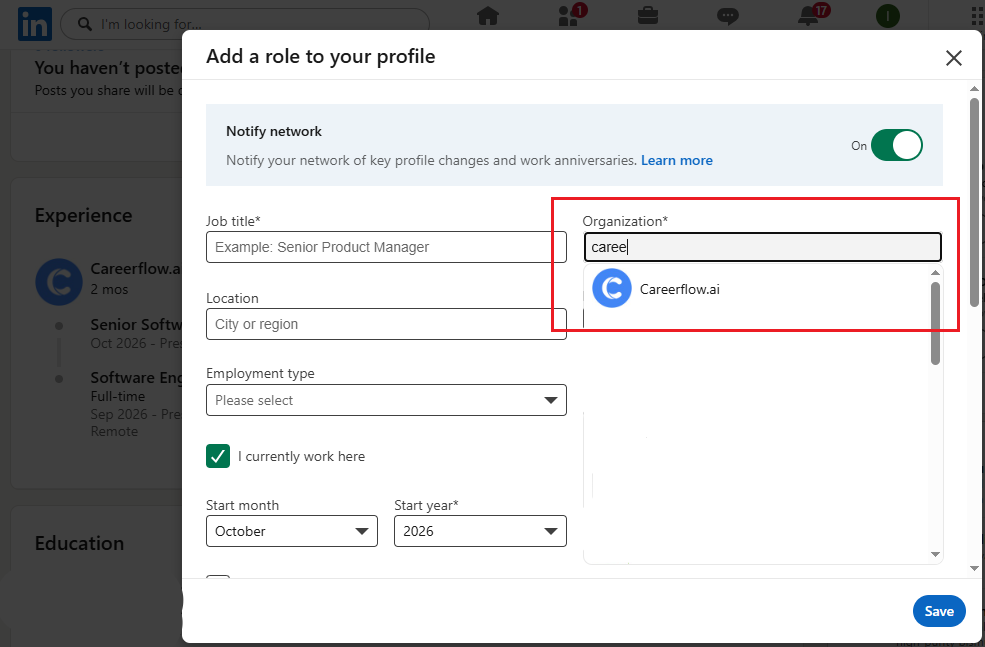
- Check the box that says "I am currently working in this role."
- Choose the month and year your promotion officially took effect in the "Start date" fields.
- In the "End date" field for your prior role, enter the month and year your previous title ended (usually the month immediately preceding your new start date).
- Click "Save" at the bottom of the form.
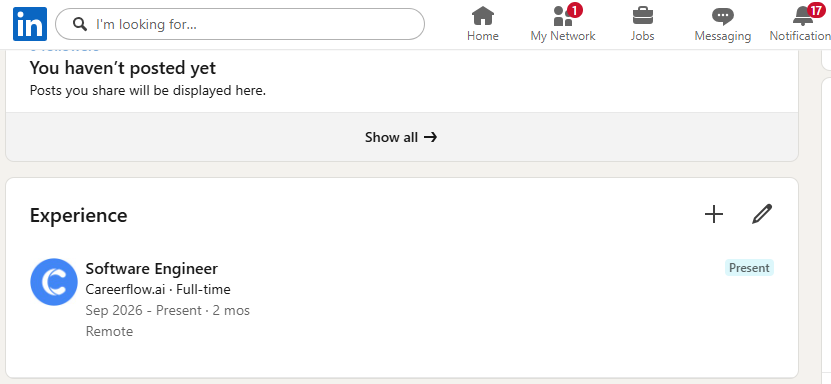
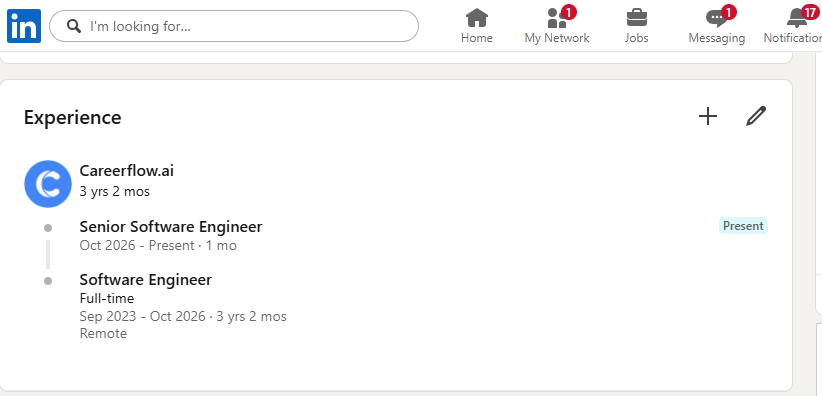
How to verify: Look at your "Experience" section. You should see a single company logo and name with your total combined tenure at the top, followed by your new title at the top of a stacked list and your previous title directly below it.
How to add a promotion on the LinkedIn app
If you are using the LinkedIn app on iOS or Android, the steps are nearly identical:
- Tap your profile picture in the top-left corner and select "View Profile."
- Scroll to the "Experience" section, tap the (+) icon, and select "Add position" (Add or edit positions).
- Enter your new title, type your company name, and select your employer from the pop-up search results.
- Toggle on "I am currently working in this role," set your new start date and update the end date for your previous role.
- Tap "Save" in the upper-right corner.
Should you notify your network?
When you add a new position or promotion, LinkedIn displays a prompt asking if you want to share the update with your network. Turning this option on broadcasts a notification to your connections and places a prompt in their feeds.
Deciding whether to notify your network depends on your professional goals and current situation.
In favor of notifying your network
Broadcasting your promotion can offer immediate advantages:
- Visibility: Automated notifications generate quick likes and congratulatory comments from your contacts.
- Client and partner engagement: If you work in sales, client success or consulting, letting your network know about your advancement reminds clients that you are growing within your organization and ready to handle higher-level needs.
In favor of staying quiet
Choosing a quiet update makes sense in several scenarios:
- Planned announcements: If you want to write a thoughtful, detailed post celebrating your team and your new responsibilities later, a quiet update prevents your network from seeing a basic automated alert first.
- Sensitive transitions: If your promotion came with internal restructuring or confidential changes, keeping a low profile until leadership makes a formal announcement is the safest approach.
The practical answer
Update your profile quietly by turning off the share notification toggle first. Once your new role is saved and your headline and skills are updated, you can take your time crafting a proper announcement post when you are ready to share the news with your network.
Update the rest of your profile so the promotion shows
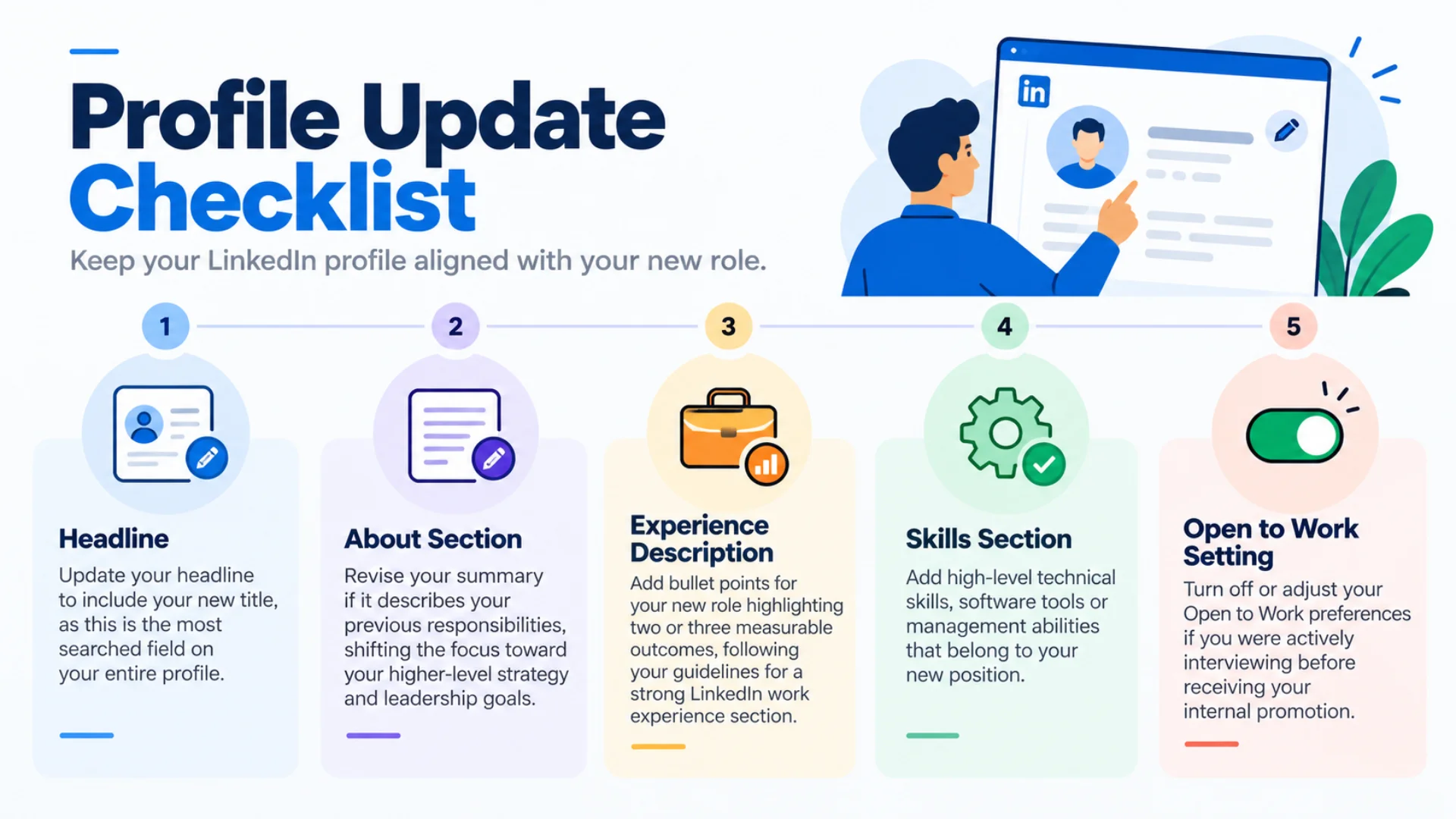
Changing your job title in the "Experience" section is only the first step. To ensure recruiters and colleagues recognize your new level of responsibility, you need to update the rest of your profile so it reflects your advanced role:
- Headline: Update your headline to include your new title, as this is the most searched field on your entire profile; read our LinkedIn headline examples to see how to structure your new title line.
- About section: Revise your summary if it describes your previous responsibilities, shifting the focus toward your higher-level strategy and leadership goals.
- Experience description: Add bullet points for your new role highlighting two or three measurable outcomes, following our guidelines for writing a strong LinkedIn work experience section.
- Skills section: Add high-level technical skills, software tools or management abilities that belong to your new position.
- Open to Work setting: Turn off or adjust your Open to Work preferences if you were actively interviewing before receiving your internal promotion.
How to do this with Careerflow
After a promotion, your headline, about section and skills list often become out of date at the exact same time. You can use our AI LinkedIn optimizer to get a complete section-by-section score that reveals which parts of your profile still reflect your old role.
- Craft a new headline: Turn your upgraded title into an eye-catching headline using our AI headline generator.
- Audit your profile content: Run our AI LinkedIn optimizer to identify missing skills or outdated summary phrasing.
- Optimize your full page: Follow our step-by-step guide on how to optimize your LinkedIn profile to ensure every section aligns with your career growth.
.webp)