Resumes
.avif)
.webp)
Include a customized LinkedIn link in your resume header right next to your contact details. Recruiters look at your profile right after reading your resume. A clean link builds instant trust, but a web address full of random numbers will make your first impression bad.
Hyperlinking your URL lets hiring managers view your profile with one click. Matching your resume with your profile recommendations makes your application much stronger. An outdated or broken link hurts your chances before you get an interview.
In this guide, you'll learn how to include your LinkedIn link, format it for resume scanners and place it correctly in the resume. We'll also give you a simple checklist to review before you apply.
Should you include LinkedIn on your resume?
Yes, include your LinkedIn profile link on your resume for almost every job application. Hiring managers expect to see it right in your contact section. A link proves you're active in your industry and understand modern hiring practices.
Leave your link off only if your profile is incomplete or outdated. An empty profile hurts your chances more than having no link at all. It's best to fix your profile before adding the web address to your application.
A complete profile acts as a natural extension of your resume. It gives you extra space for your full work history, recommendations, skills and project links.
How to customize your LinkedIn URL
Customize your default LinkedIn link by opening your public profile settings and replacing the auto-generated numbers with your actual name.
Standard accounts generate links that look like linkedin.com/in/firstname-lastname-8a7b3c9d, https://linkedin.com/in/firstname-lastname-8a7b3c9d, which look cluttered on a resume. A custom web address shows attention to detail and creates a clean application.
Step-by-step guide to customizing your URL
- Log in to LinkedIn and open your profile page.
- Click Edit public profile & URL in the top-right corner.
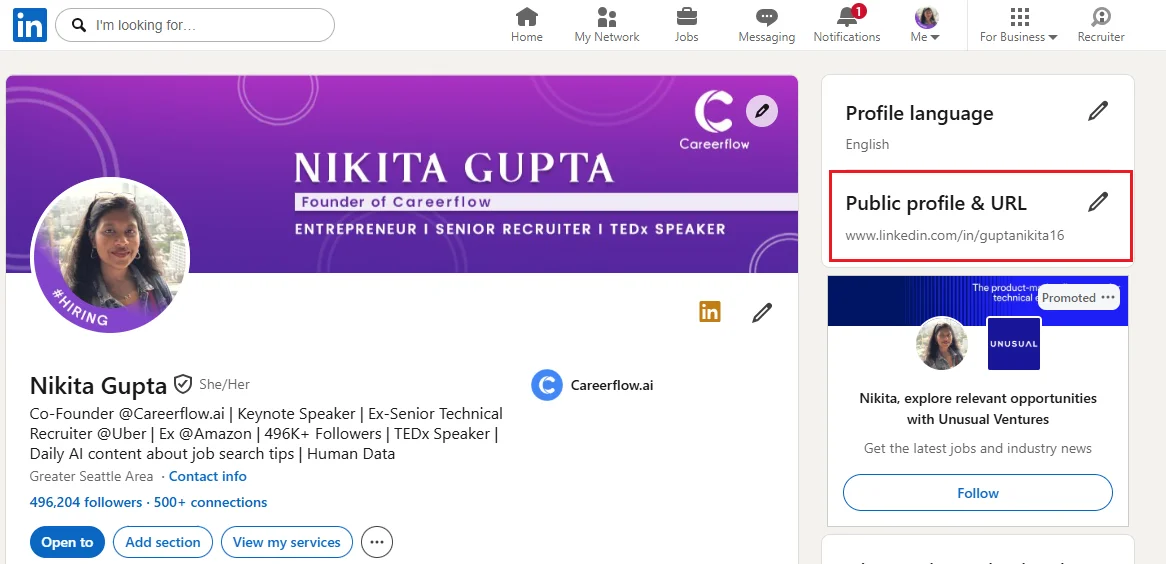
- Click the pencil icon under Edit your custom URL.
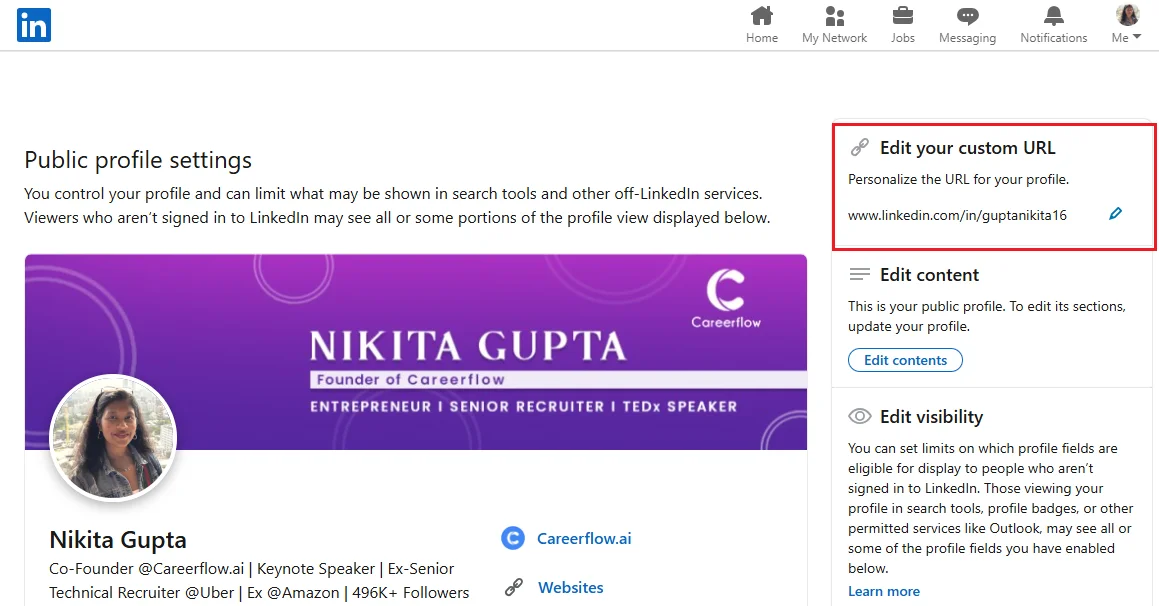
- Type your preferred address using letters, numbers or hyphens.
- Click Save to lock in your changes.
Clean LinkedIn URL format examples
- linkedin.com/in/james-chen (first name + last name)
- linkedin.com/in/janesmithmarketing (name + industry for common names)
- linkedin.com/in/sarah-miller-cpa (name + professional credentials)
- linkedin.com/in/roberto-lopez-pm (name + job title)
Note📢: Drop the "https://www." prefix from your resume header to save space and keep your layout uncluttered. Writing [linkedin.com/in/yourname] rather than https://linkedin.com/in/yourname is easier to read and looks far cleaner.
👉 Read our complete guide to learn more about “How to find, edit and shorten your LinkedIn URL”
How to format your LinkedIn URL on your resume
Place your LinkedIn URL directly in your resume header alongside your phone number, email address and location. It belongs in your header because it serves as contact verification rather than a skill.
Follow this standard order for your header:
- Name
- Phone number
- Email address
- City and State
- LinkedIn URL
- Portfolio link (optional)
Keep your link on a single line. If it wraps to a second line, shorten the custom text or reduce the font size slightly.
.webp)
Hyperlink your URL for digital applications
Hyperlink your profile link whenever you submit digital resumes through email or job portals. Display the clean text as linkedin.com/in/yourname rather than https://linkedin.com/in/yourname, but point the link to your full profile web address.
Here's how to hyperlink your URL across different formats:
- Microsoft Word: Highlight the text, press Ctrl+K, paste your full link and select OK.
- Google Docs: Highlight the text, press Ctrl+K, paste your full link and click Apply.
- PDF files: Export your file directly from Word or Docs to keep your hyperlinks active.
Format plain text for printed resumes
Format your URL as plain text without the https:// prefix for paper resumes used at career fairs or interviews. Write the shortened address in lowercase text so hiring managers can type it easily.
Make sure the text uses an easy-to-read font size. Check that the link does not break across multiple lines on paper.
What to check before adding your LinkedIn URL
Check your profile photo, headline, work history and skills before linking LinkedIn to your resume. Recruiters look for complete profiles that confirm your qualifications.
Review these core areas before applying:
- Profile photo: Upload a clear, professional photo. Profiles without pictures get fewer views and look inactive.
- Headline: Match your headline to your target job. Don't confuse hiring managers with conflicting job titles.
- Work history and summary: Keep your job titles, company names and dates identical to your resume summary. Discrepancies raise doubts about your experience.
- Recommendations: Request at least one recommendation from a former manager. Real reviews build trust fast.
- Skills and endorsements: List core skills and get endorsements from colleagues. You'll confirm the qualifications shown on your resume.
Match your LinkedIn profile to your resume
Keep every date, title and company name consistent between your resume and your LinkedIn profile. Hiring managers cross-reference both during their review. Any mismatch in your work history raises red flags immediately.
Use your profile to expand on your experience with extra context, media links and project examples. Your resume acts as a quick summary, while your profile tells your full career story.
How to build a resume that links to a complete profile with our tools
Use our tools to create a targeted resume and polish your LinkedIn profile simultaneously.
AI resume builder
Open our AI resume builder to create a clean, modern resume layout. Enter your custom LinkedIn link directly into the contact header section. The builder automatically formats your web address to fit neatly on one line.
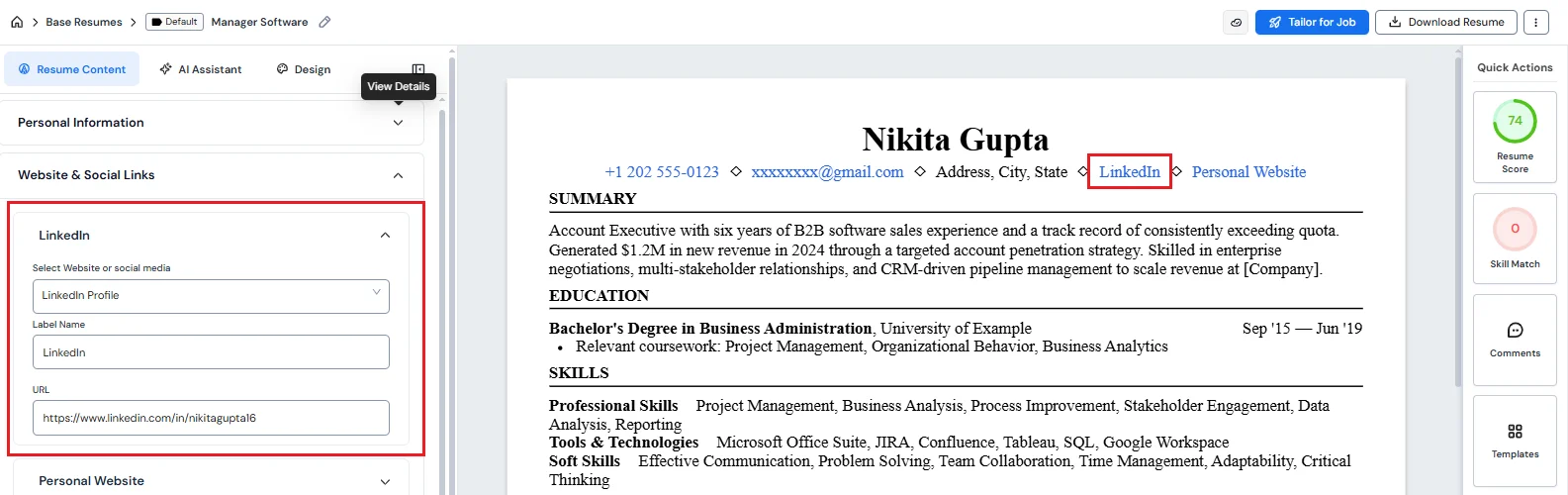
Export your final document as a PDF. This keeps your hyperlink active when you submit applications online.
LinkedIn optimizer
Run your profile through our LinkedIn optimizer before sending your resume to employers. The tool scores your profile completeness, headline strength and summary quality in real time.
You'll fix weak spots fast so hiring managers view a polished, professional profile.
.webp)
.webp)