.avif)
.webp)
Are you starting a new job search? Perhaps you worry your manager might see your profile. Or maybe you just accepted an offer and want the badge gone.
Managing your visibility is simple when you understand your options. The LinkedIn Open to Work setting has three states, not two. The middle state, Recruiters Only, is the option most people actually want.
This feature is a practical tool for signaling availability. It works best when you pair it with an optimized profile. In this blog, we will discover how to manage your status for your current situation, whether to turn it on, hide it or remove it.
What the Open to Work badge actually does
The LinkedIn Open to Work feature alerts recruiters that you want new job opportunities. It works by changing your candidate status inside candidate search databases.
The feature offers two distinct visibility modes:
- All LinkedIn members: Adds a public green #OpenToWork photo frame to your profile picture. Anyone on LinkedIn can see that you're looking.
- Recruiters only: Share your preferences exclusively with users who have a LinkedIn Recruiter license. No frame appears on your profile and nothing posts to your feed.
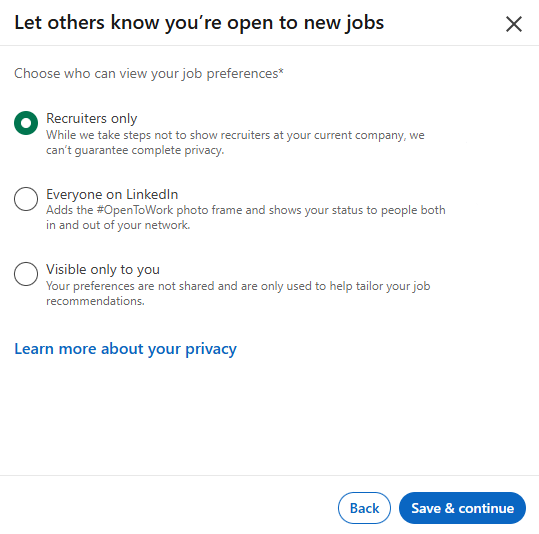
Recruiters regularly filter candidate searches to show open talent first. You can learn more about how recruiters use LinkedIn search filters to find relevant profiles.
However, privacy has limits. LinkedIn Help documentation explicitly states that LinkedIn cannot guarantee recruiters at your current company will not see your status.
How to turn on Open to Work
Turning on Open to Work takes less than two minutes from your profile page.
- Click your profile picture and select View Profile.
- Click the Open to button below your headline and select Finding a new job.
- Enter your target job titles, locations, start date and job types.
- Choose your visibility preference under Choose who sees you're open. Select Recruiters only or All LinkedIn members.
- Click Add to profile to save your preferences.
On mobile, tap your profile picture, select View Profile and tap Open to.
Immediately after saving, a green confirmation banner appears and an Open to Work box shows on your profile.
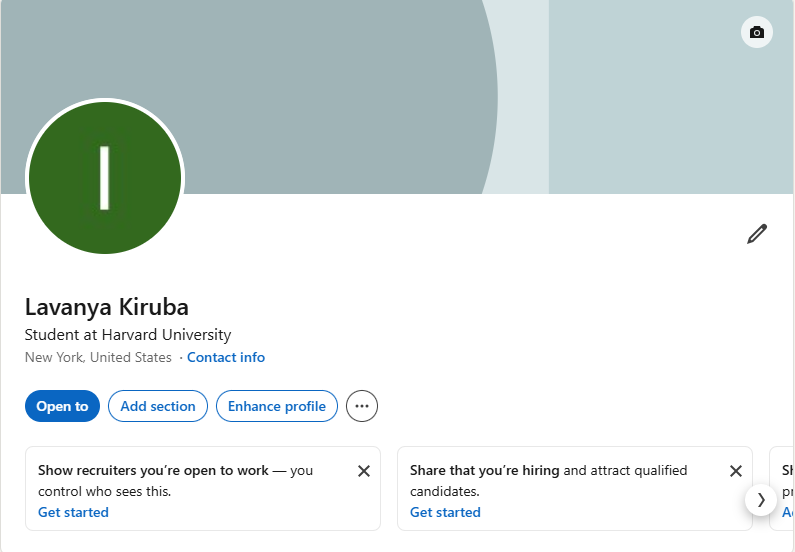
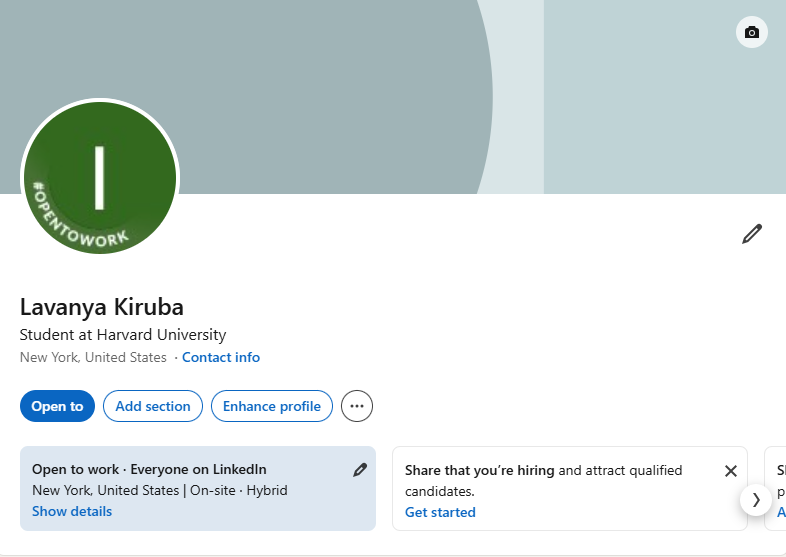
How to change who can see it
You can change who sees your status anytime without re-entering your job preferences.
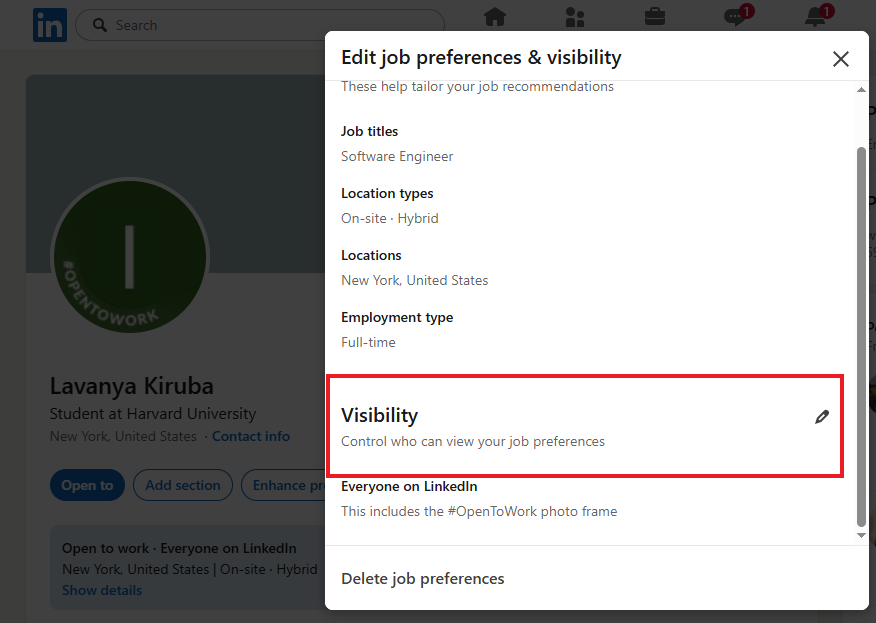
Here's how to change Open to Work on LinkedIn visibility settings:
- Go to your profile and click the edit icon in the Open to Work section.
- Click Choose "Who can see your job preferences" at the bottom.
- Select Recruiters only or All LinkedIn members.
- Click Save.
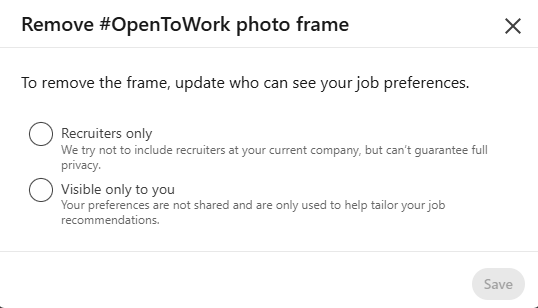
If you need to know how to hide Open to Work from employer connections, select Recruiters only. Switching from public to recruiters only removes the green photo frame immediately while keeping your saved job preferences intact.
How to turn it off or remove it completely
Removing the photo frame and turning off the job preference signal are two different actions.
If you only remove the green frame, your profile stays set to recruiters only. You must delete the feature entirely to turn off the signal completely.
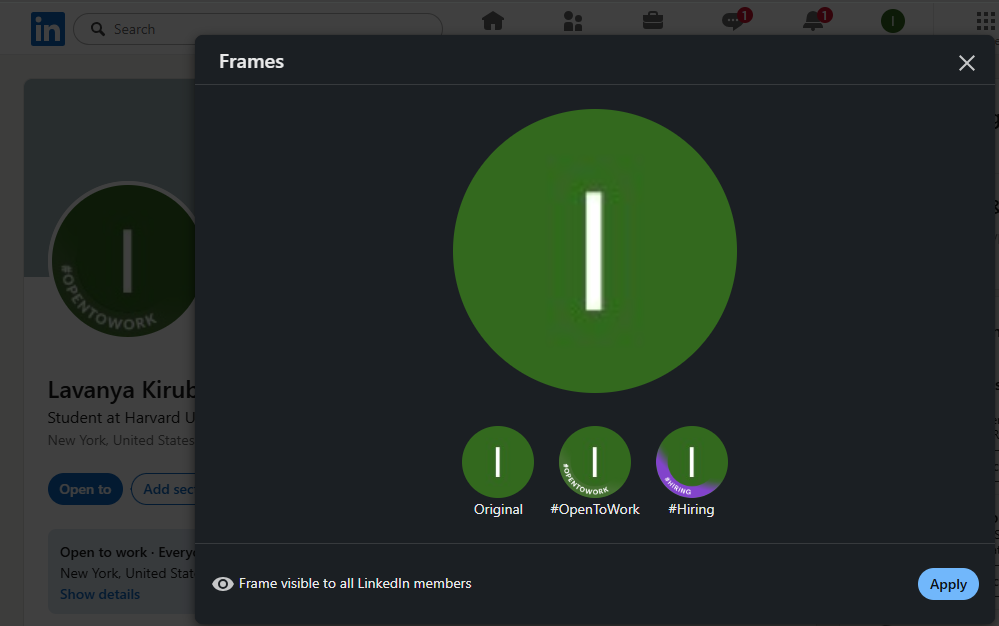
To remove the photo frame only:
- Click your profile photo.
- Select Frames and choose Original.
- Click Save.
To turn off Open to Work completely:
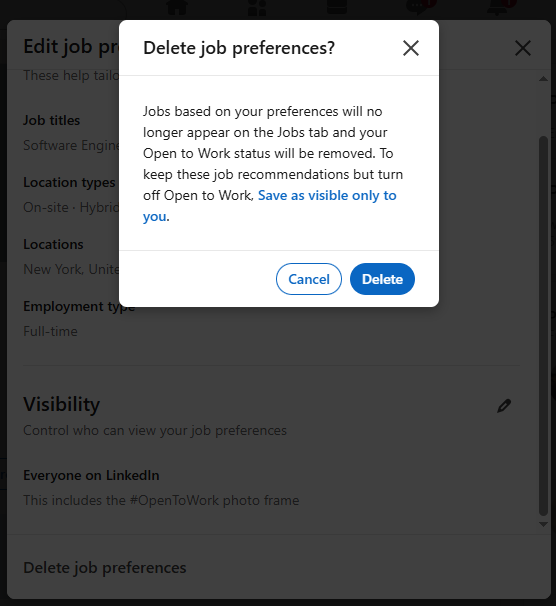
- Go to your profile and click the edit icon in your Open to Work box.
- Click Delete job preference at the bottom.
- Confirm by clicking Delete.
Your changes usually update instantly. Platform updates can take a few minutes to propagate, so refresh your browser if needed.
Should you use it at all?
Deciding whether to use LinkedIn Open to Work comes down to your employment status and seniority level.
The public badge offers real advantages. It's completely free and places your profile into recruiter search filters immediately. If you're unemployed, maximum exposure is much more important than any little badge stigma.
However, a public badge carries risks for currently employed or senior professionals. Broadcasting immediate availability can make you look urgent. It also alerts colleagues or managers who view your profile.
Here's the direct rule to follow:
- If you're currently employed: Use Recruiters only. It keeps your job search discreet while alerting talent acquisition teams.
- If you're between roles: Use All LinkedIn members. The public green frame maximizes profile views.
📢 Note: If you're employed, it's better to use the hidden recruiter setting. You get the search boost without triggering awkward conversations with your boss.
Turning on the signal is only half the battle. A badge brings recruiters to your page, but it can't close the deal. Learn how to optimize your LinkedIn profile first so recruiters actually reach out.
How Careerflow can help
Turning on Open to Work increases your profile views from recruiters. Extra views only matter if your profile converts visits into messages.
Your headline, about section and skills act as your main conversion surface. Use LinkedIn headline examples to craft a compelling opening line.
Before switching the badge on, run a quick check on your profile page. Use our linkedin optimizer to receive an instant profile scan and score.
Then follow our linkedin profile checklist to complete a section-by-section pass. Optimizing your page first ensures you convert every recruiter visit.

.webp)